 will
expand or contract the organizational structure.
will
expand or contract the organizational structure.
Assigning Employees to the Organization Structure
Once the Organization is completed, the next step is to add people (employees or People in services) to the Organization.
Adding employees to the Organization structure: Adding employees to the org structure is the same as most typical organizations. Individuals are added to the group that represents their functional position in the organization. For example, using the organization structure pictured below combining geographic and functional groups, the Administration and Northern Region branch for employees would look like this:
Employee Organization
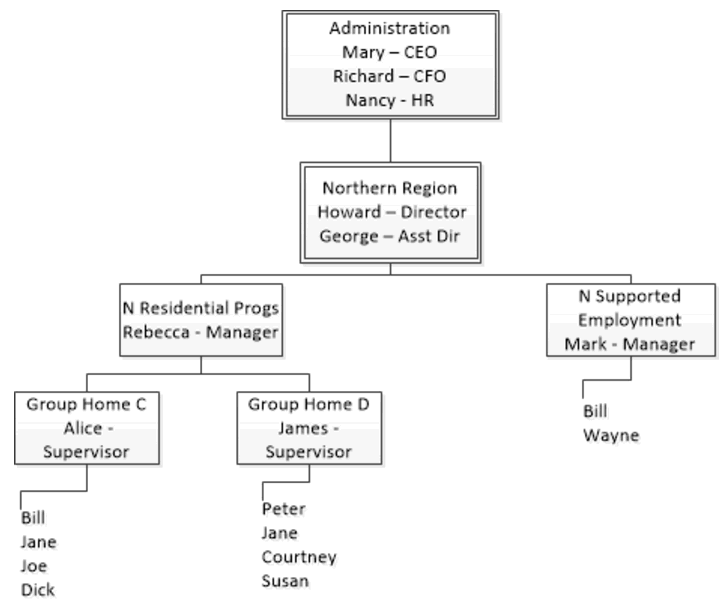
This example displays a typical structure. Managers are in higher levels of the organization, and have administrative authority over individuals in the lower levels. What this means is that employees in the Administration group will have access to the People in services who are in any of the service groups; that is Mary, Richard, and Nancy will have access to People receiving services in Group Home C, Group Home D, and Supported Employment. In contrast, Mark will only have access to People in the Supported Employment service group; and Alice and James will have access to People in Group Home C or Group home D respectively.
Employees (and People in services) can be in multiple groups. In the example above, Jane is an employee assigned to both Group Home C and Group Home D. The ability to be in multiple groups does have a caveat: employees can only be in one group in a single “branch” of the organizational tree. For example, Rebecca is the manager of the Residential Programs. As such she cannot also be in either Group Home C or D. However, in her managerial role, she already has access to all employees and People in services for both Group Homes. Conversely, Rebecca could also be in the Supported Employment group because this is a split or different branch from the Residential Programs.
Using the “Assignment” tab: The “Assignment” tab has two subtabs:
“By Group” allows one or more employee or Person(s) to be added or removed to a selected group.
We will discuss and demonstrate how to use the “By Group” tab. The “By Member” option works essentially the same way.
The
Assignment tab displays the company’s “expanded” organization structure
when it is first opened. To save space the organization structure
can compacted (or expanded) using the icons next to each group. Clicking
the icon
will
expand or contract the organizational structure.
To begin assigning people into groups, a group must be selected in the org structure. Once a group is selected, the “Operation” options will be made available; once the Operation type is selected, the “Group Member Type” will be made available and so on until individuals are selected and added to each group.
As a first step we will add employees to the “Administration” group:
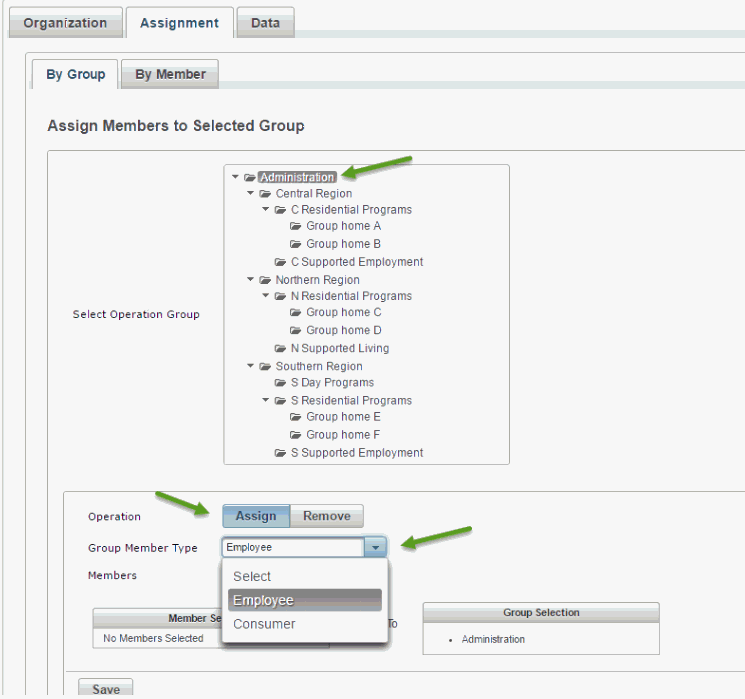
Once the “Operation” (Assign) and “Group Member Type” (Employee) have been selected, the list of employees will be available in the “Members” dropdown list. Multiple members can be assigned by clicking the checkbox next to their name and saving the members.
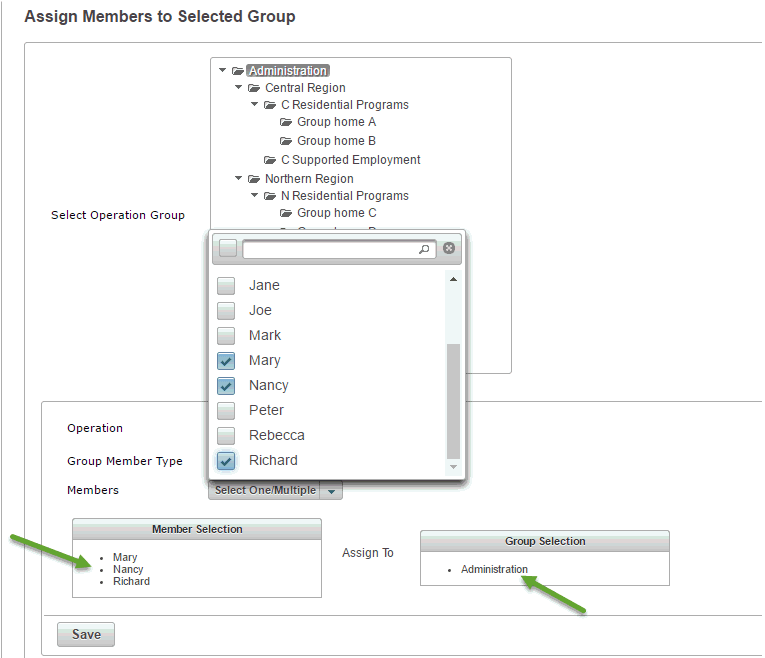
Notice that the Members selected and the Group Selection are displayed at the bottom of the “Assign” section of the screen. The “Save” button must be selected after each group selection or the data will be lost! The save data confirmation will always be displayed in the top right hand corner of the screen. Continue saving employees to each group until all employees have been assigned.
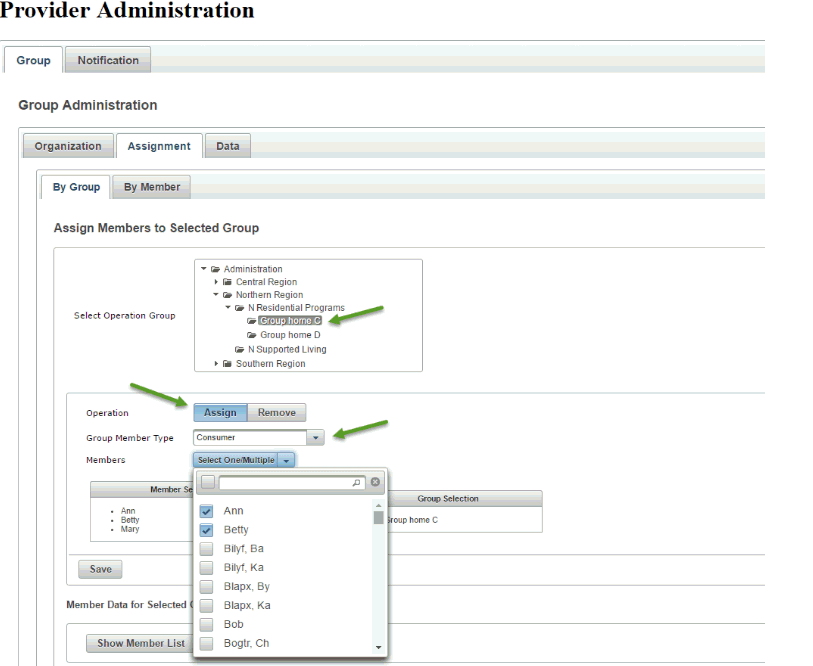
Assigning People in services to groups works the same as assigning employees. The only difference is that “Consumer” is selected in the “Group Member Type” instead of Employee. For example, if Group home C, Assign, and Consumer are selected, we can select and save/assign the People who are receiving services to Group home C:
At any time, group membership can be displayed at the bottom of the Assignment screen by highlighting a group and selecting “Show Member List”:
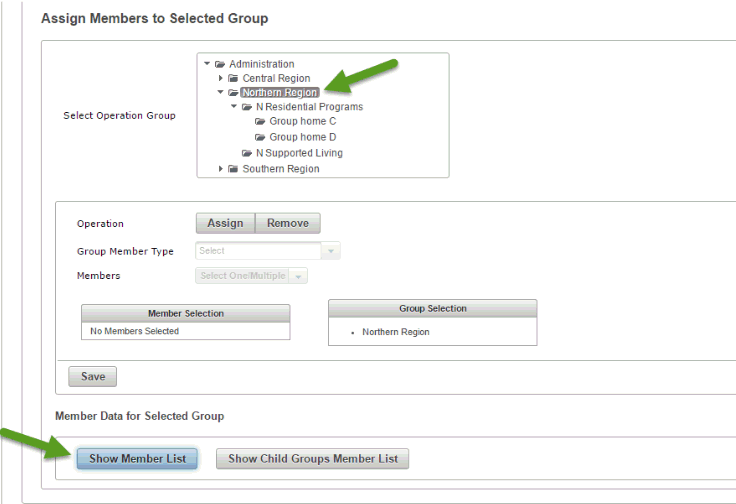
The employees assigned to the “Northern Region” would then be displayed (Howard and George):
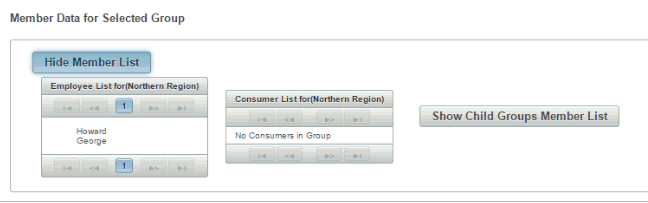
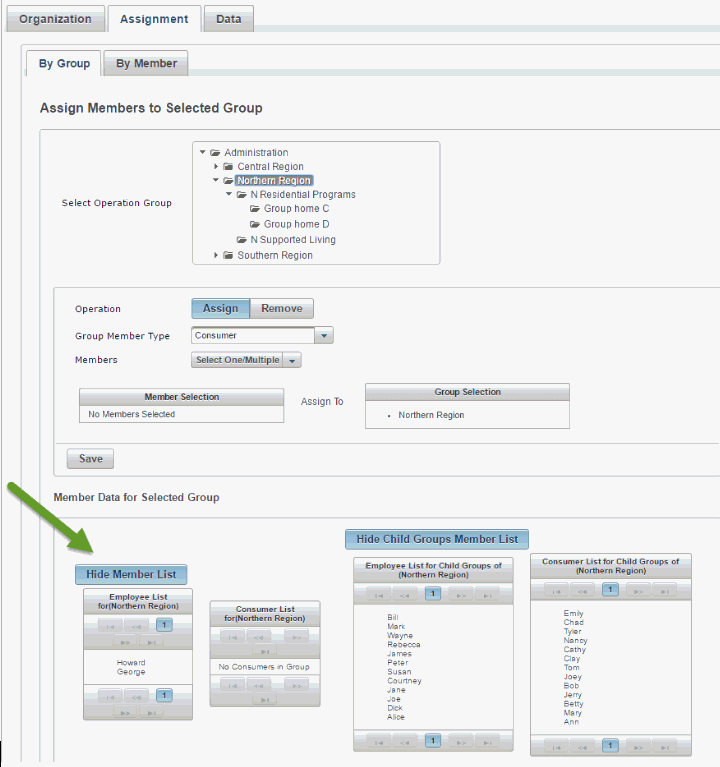
Notice that the “Show Member List has changed to “Hide Member List” to allow hiding the members. Both employees and consumers for the selected group are displayed. In this example, no People in service have been added to the Northern Region group, thus the consumer list is empty.
In addition, the “Show Child Groups Member List” can be selected to display the employees or People in services who are in lower levels of the Northern Region organization. When this option is selected all employees and all People in services who are assigned in Northern Region or lower are displayed:
Assigning using the “By Member” tab:
When adding a new person or modifying an existing person in the organization structure, it will usually be easiest to use the “By Member” tab. The By Member tab begins with selecting a person (employee or Person in services), and then adding or modifying the appropriate groups for the person.
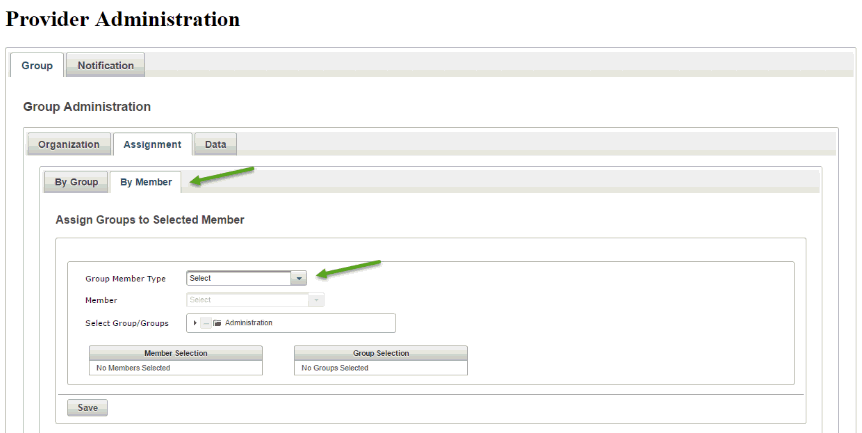
Similar to the By Group tab, the By Member tab begins with selecting the Group Member Type (either Employee or Consumer). Once the “Type” has been selected the list of available members will become available, and all available groups will be displayed.
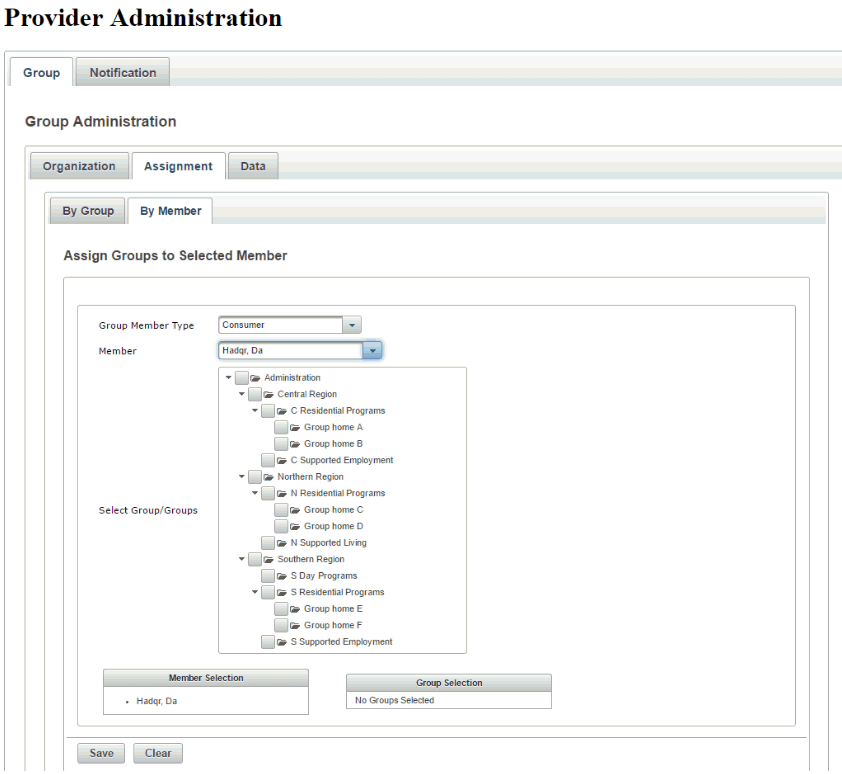
The appropriate groups can then be selected. In this example, consumer Da Hadqr is selected and is placed in both “Group home A” and “C Supported Employment” groups.
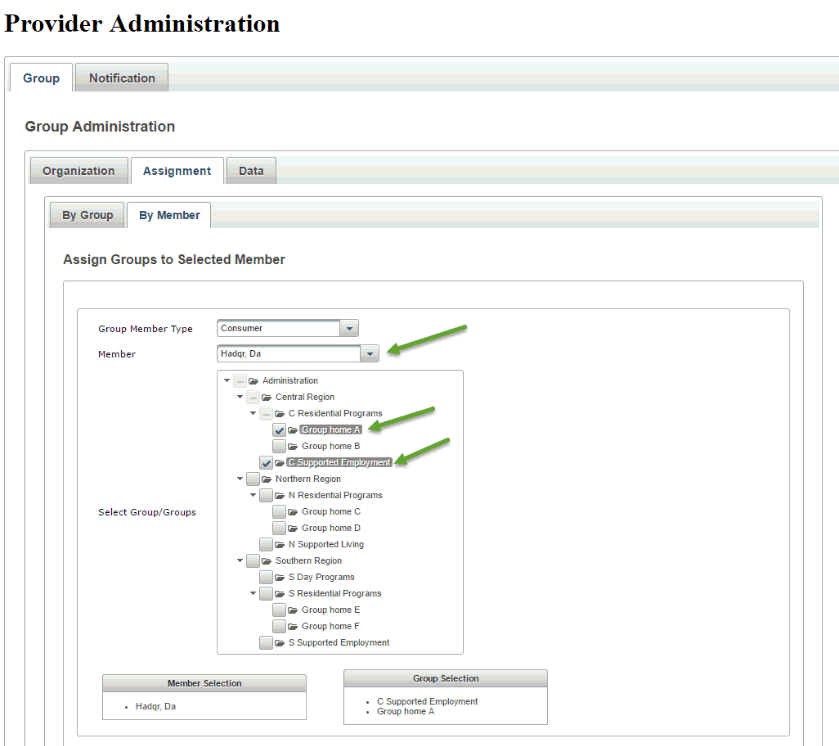
When the assignments for the selected person are complete, and “Save” is selected, a confirmation message will be displayed on the screen.
